Download your X/Twitter archive before checking followers
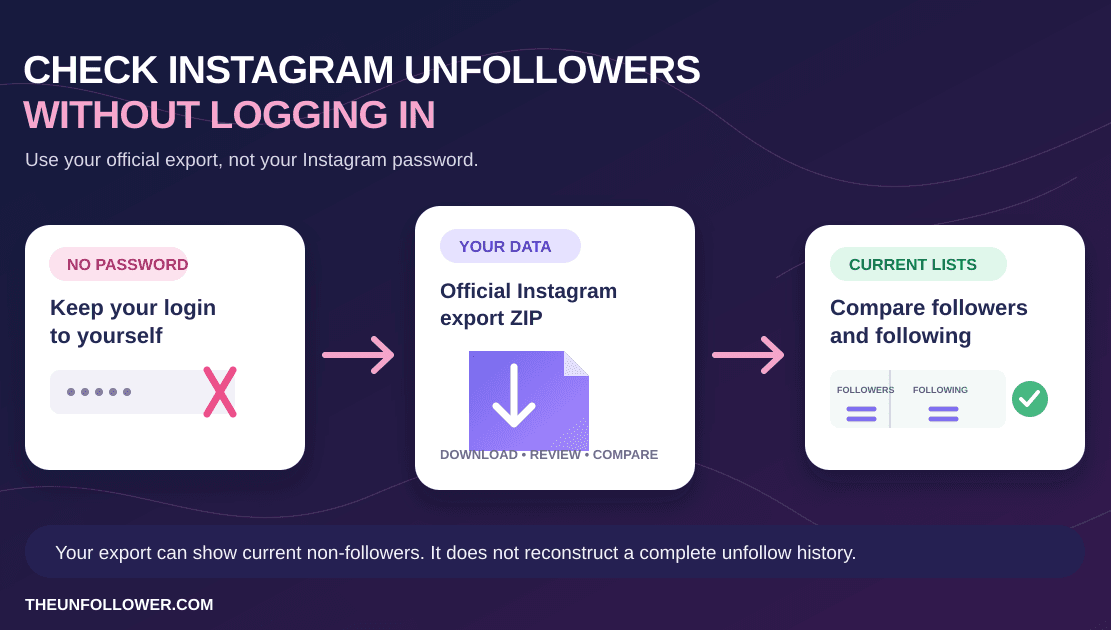
If you want to analyze Twitter/X followers safely, start with your official account archive. The archive is the file X prepares from your own account data. When it includes follower and following information, you can use it to review account relationships without giving a third-party tracker your X password.
This guide explains how to download your X/Twitter archive and use it with TheUnfollower's Twitter unfollower tracker.
The exact labels inside X can change, but the goal stays the same: request your account data archive, download the ZIP file when it is ready, and upload that ZIP without editing it.
Already Have Your X Archive?
Upload the official ZIP to compare followers, following, fans, mutuals, and accounts that do not follow you back. No X password required.
Analyze Your Twitter ArchiveWhy use the official archive?
The archive-based method is useful because it avoids the riskiest part of many follower tracker apps: account access. Using a Twitter follower tracker without login ensures you can check relationships safely on X without sharing your password.
With the official archive workflow:
- you do not type your X password into an unfollower app;
- you do not authorize a tool to perform actions on your account;
- you work from data X provides to you;
- you can keep dated snapshots for future comparison;
- you stay in control of any manual cleanup decisions.
The tradeoff is that the archive is not always instant. X may take time to prepare it. For most people, that slower workflow is worth it for a safer follower review.
Before you begin
Make sure you can access the X account you want to analyze. X may ask you to confirm your password, verify your email, enter a code, or wait before downloading the archive.
Also remember:
- download the archive from the official X settings area;
- keep the file as a
.zip; - do not unzip and upload random internal files separately;
- use the newest archive when you want the newest relationship snapshot;
- label old archives by date if you plan to compare changes later.
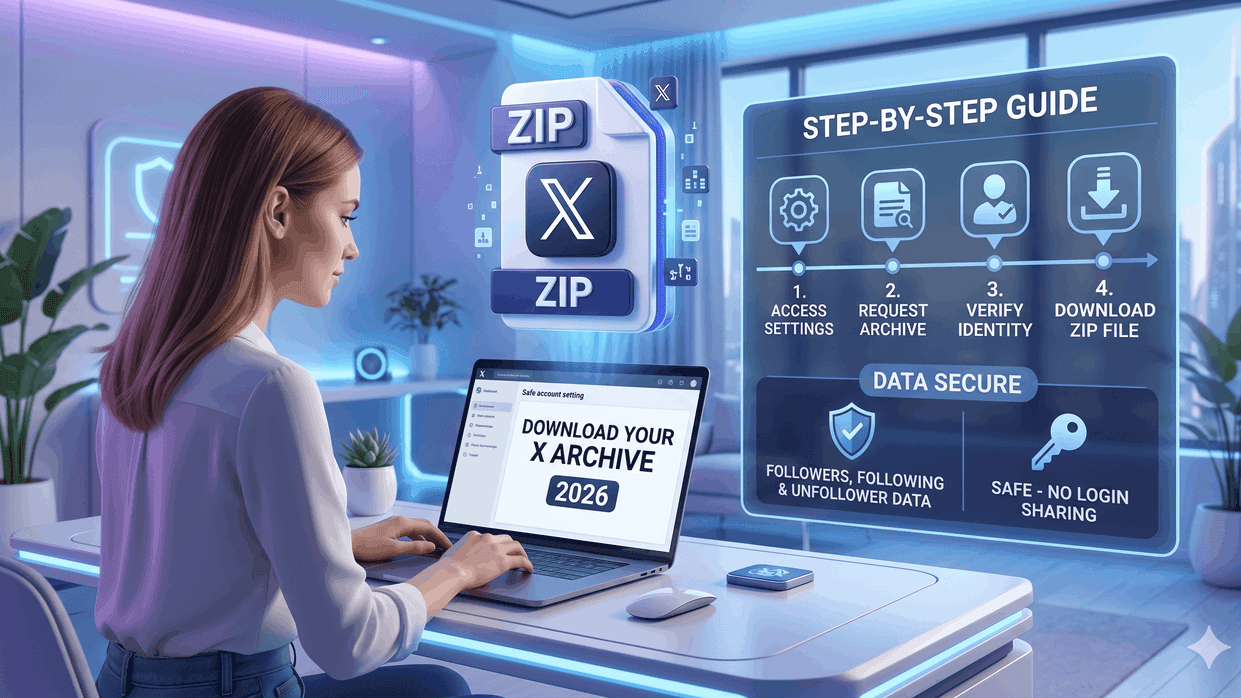
1. Open your X account settings
Sign in to X in a browser and open your account settings. Look for the area related to your account, data, privacy, or downloading an archive of your data.
The wording may vary by region, device, and X interface changes. If you cannot find it immediately, search inside settings for terms like archive, download your data, or your account.
2. Request your X/Twitter archive
Choose the option to request or download an archive of your data. X may ask you to verify your identity before it starts preparing the file.
This is normal. The archive can include sensitive account data, so X often requires confirmation before making it available.
If X offers choices about what data to include, keep the request focused on account data that includes followers and following when possible. TheUnfollower does not need your media library, messages, or unrelated data for a follower/following comparison.
3. Wait for the archive to be ready
X may not give you the ZIP instantly. It may prepare the archive in the background and notify you later when the download is available.
How long it takes can depend on account size, platform load, and X's current export system. If the archive is not ready right away, check back later from the same settings area.
4. Download the ZIP file
When the archive is ready, download the ZIP file to your device. Keep it zipped.
Do not rename internal files, delete folders, convert formats, or upload only one file from inside the archive. The folder structure can help analysis tools find the right follower and following data.
If you save multiple archives over time, use a simple naming pattern on your device, such as:
x-archive-2026-06-17.zipx-archive-2026-07-17.zipx-archive-after-launch.zip
Dated names make it easier to compare snapshots later.
5. Upload the archive to TheUnfollower
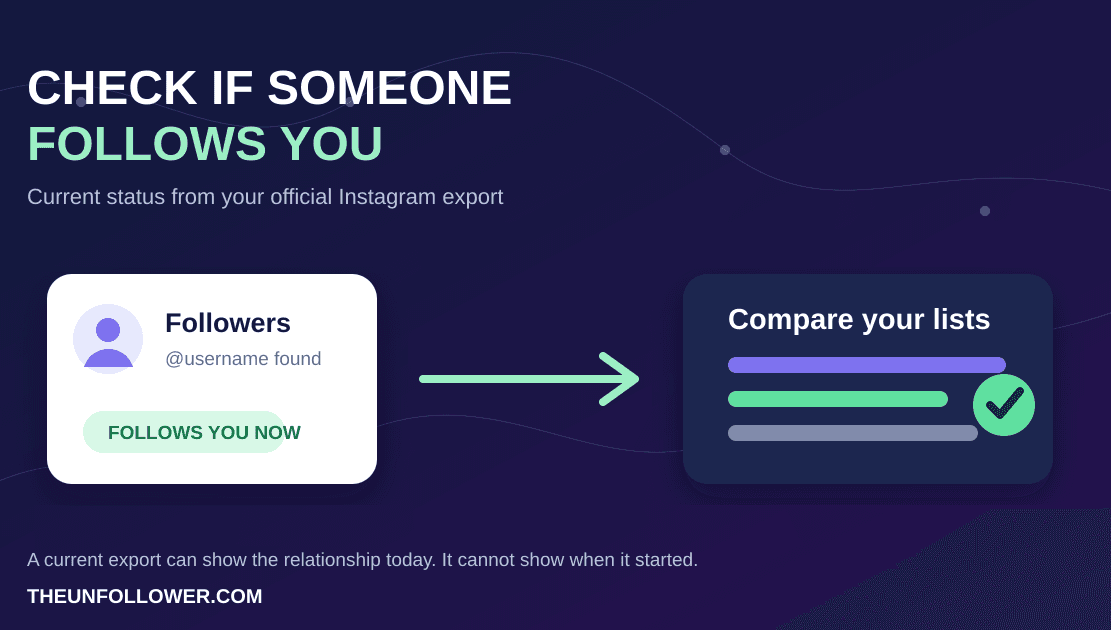
Open the X unfollower tracker, choose the ZIP file, and upload it. TheUnfollower reads the relevant data and compares your followers vs following lists.
The result can include:
- accounts you follow that do not follow you back;
- accounts that follow you but you do not follow back;
- mutual followers;
- full follower and following lists when available.
The tool is for analysis. It does not automatically unfollow accounts or perform actions inside X.
Troubleshooting: what if the archive does not work?
If the tracker cannot read the archive, check these common issues:
The file was unzipped first
Upload the original ZIP when possible. Extracting the archive and uploading a single internal file can remove context the parser expects.
The archive is old
An old archive may not reflect your current follower/following lists. Request a fresh archive if you want current results.
The archive does not include follower data
Some exports may not contain the needed relationship files, or X may change export structure over time. If the tool says required files are missing, request a new archive and check that it includes account relationship data.
The ZIP is very large
Large accounts can produce large archives. If upload fails, try again on a stable connection and avoid downloading unnecessary media when X gives that choice.
How the archive helps you see unfollowers
The most practical result is the non-followers list: accounts you follow that are not currently following you back.
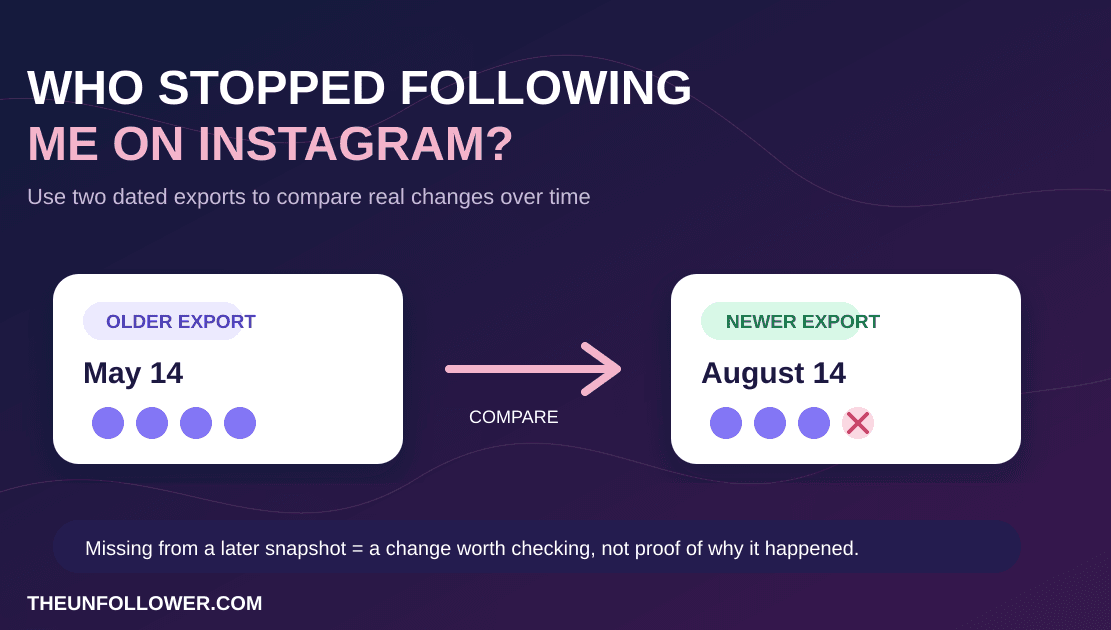
That list is not always the same as a historical “unfollowed me yesterday” report. A single archive is a snapshot. If you want to understand changes, save two archives from different dates and compare them.
For a full explanation, read about the safe way to check who doesn't follow you back.
Related guides
- Twitter follower tracker without login
- Twitter followers vs following list
- Open the X unfollower tracker
FAQ
Is downloading my X/Twitter archive safe?
Downloading your archive from X's official settings is the platform-provided way to access your own account data. Store the file carefully because it can contain personal information.
Do I need to unzip the archive?
No. For TheUnfollower, upload the ZIP file as downloaded whenever possible.
Can I download only followers and following?
X's options may change. If it lets you choose a focused export that includes follower and following data, that is ideal. If not, download the archive X provides and use the ZIP directly.
How often should I download a new archive?
Download a fresh archive when you want a fresh snapshot. Monthly or campaign-based checks are usually more useful than daily checking.